
گزینههای نمایش
Original Bizagi title: Modeler > Bizagi Modeler > Desktop Application > User Interface explained > View options
مدلر / Bizagi Modeler / نرمافزار دسکتاپ / توضیح رابط کاربری / گزینههای نمایش
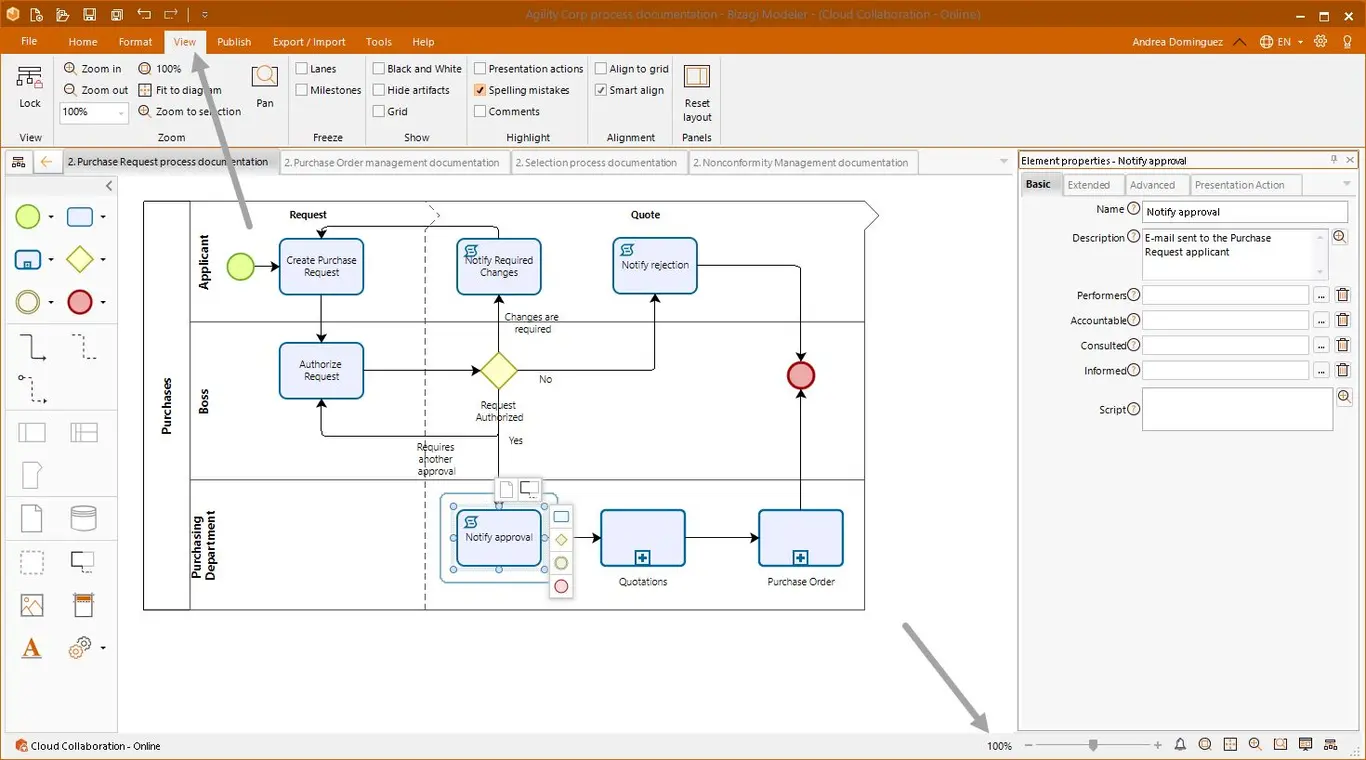
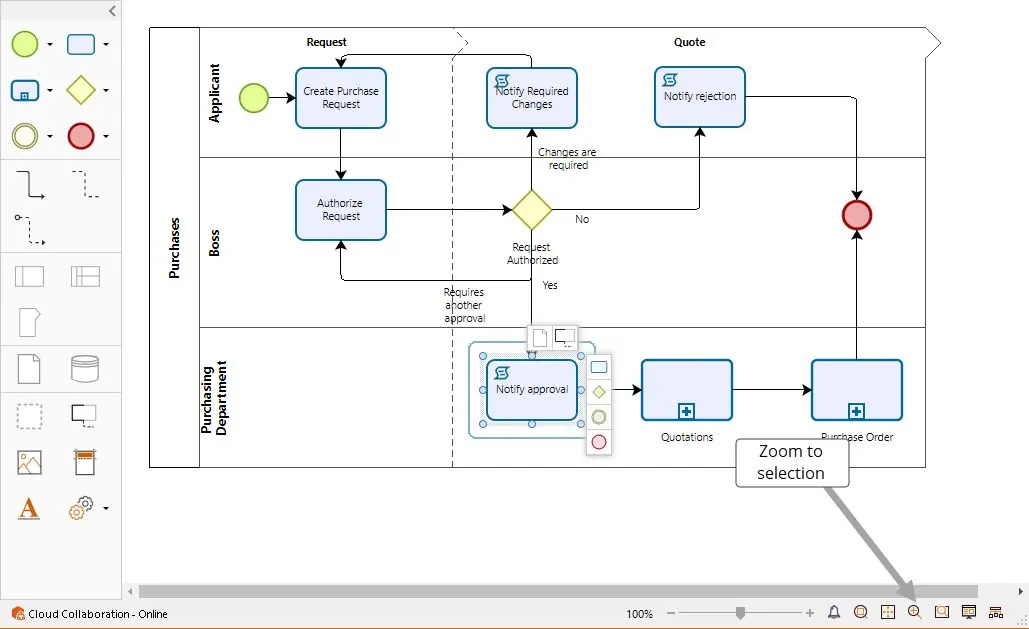
On the bottom right corner of Bizagi Modeler are view options that help you to navigate through your process as is shown in the image below.
This menu can be also found on the View tab of the Ribbon.
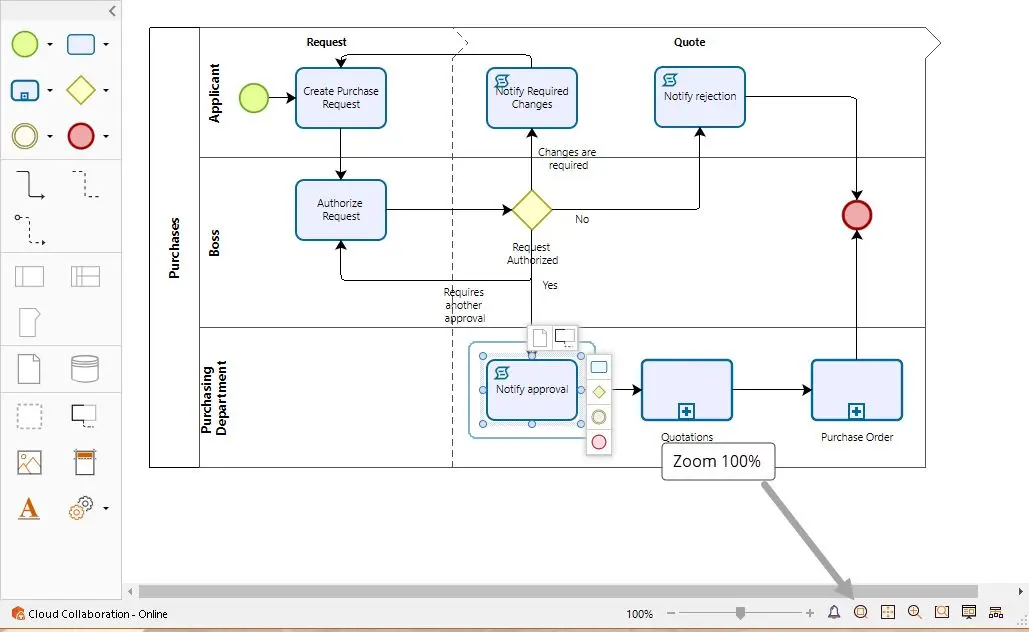
Zoom 100%
Zooms the model to normal size (100%).
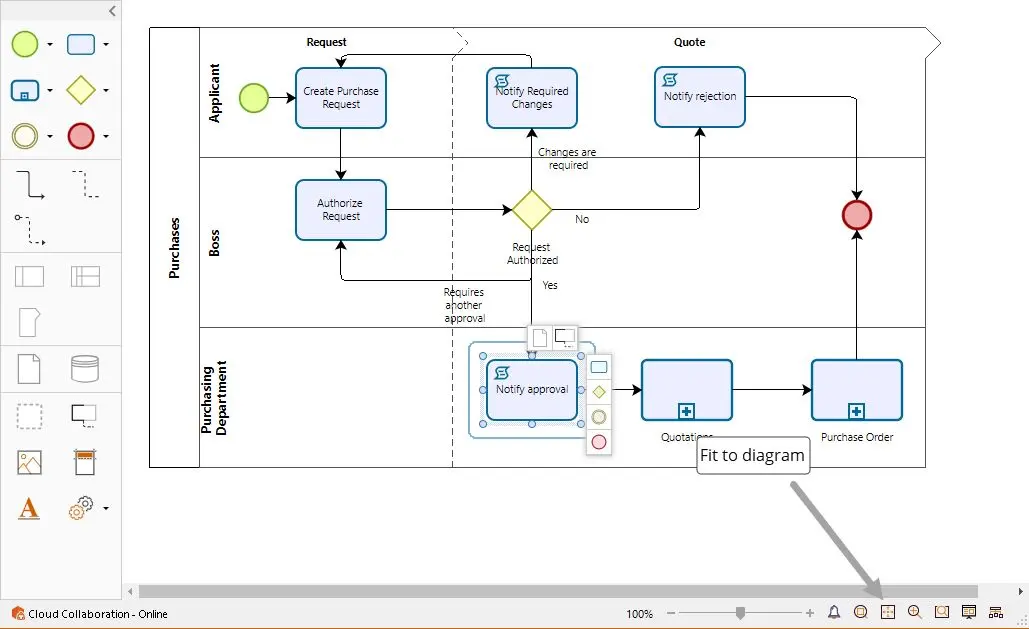
Fit diagram
Zooms the page so the entire diagram fits in the window.
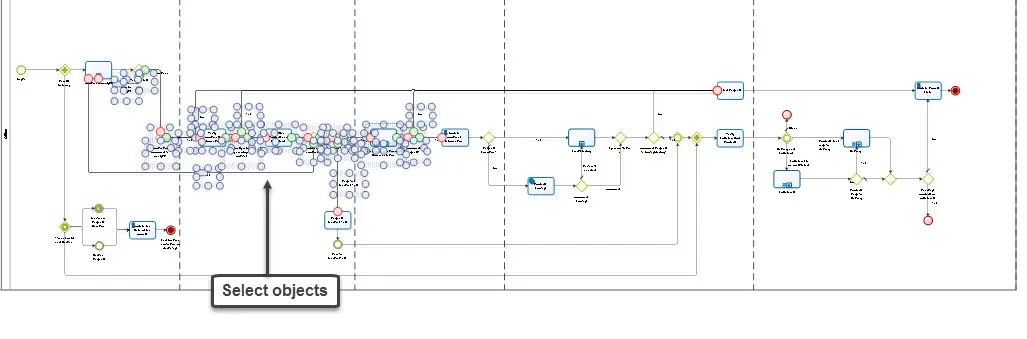
Zoom to selection
Zooms the page so the selected elements fit the window
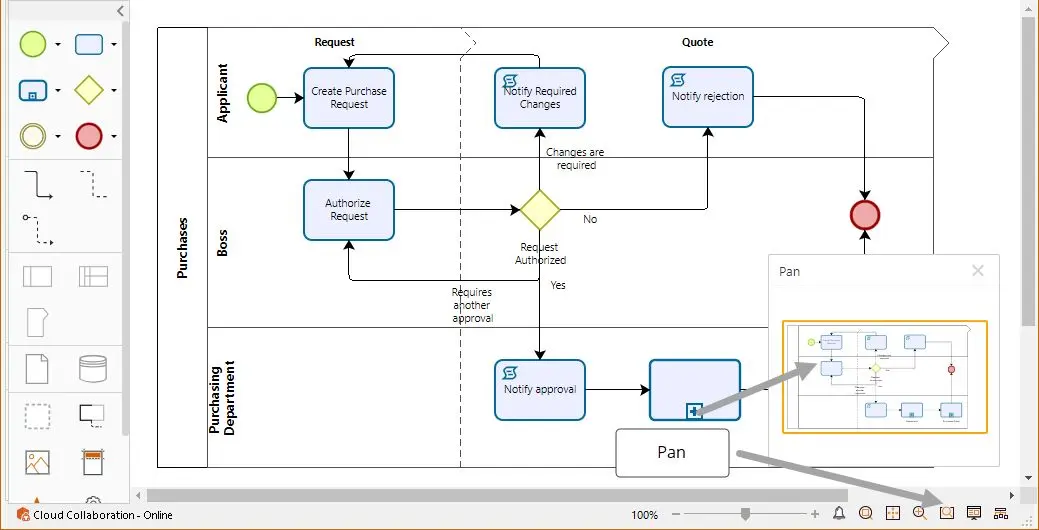
Pan
Shows the pan window which can be used to navigate through the diagram.
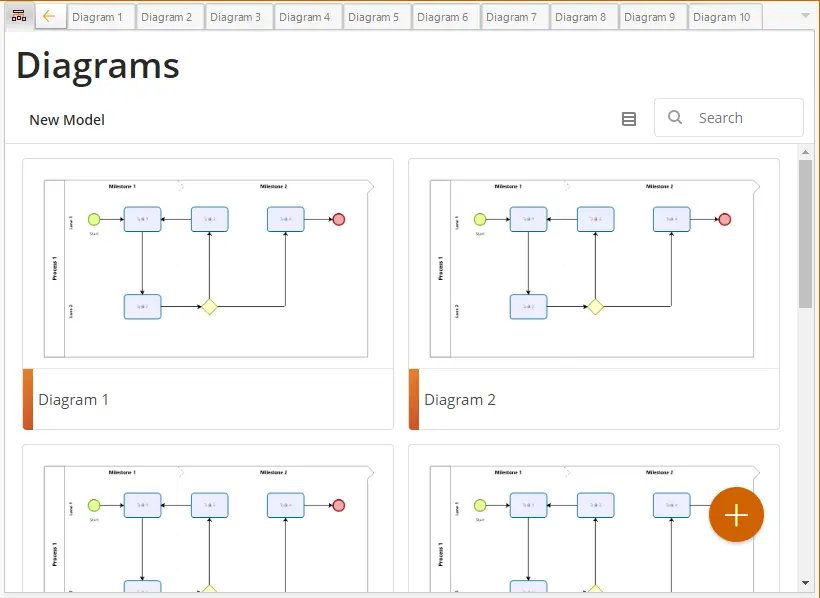
At the top of the Pie Menu, find the tabs view option where you can:
•Navigate through your model diagrams by directly selecting them.

•An orange arrow that allows you to go back to the previously selected diagram tabs is available every time you select a new one, so you must have at least two or more diagram tabs on the tabs view option for it to be available. It is not available in the presentation mode.
It keeps track of the history of the tabs that you have been working on, so each time you click the orange arrow, you go back to the previously selected tab on the track history.
Enabled:

Disabled

For instance, suppose that you were in the Diagram1, then on the Diagram 3, and now you are on the Diagram 10. Click the orange arrow to go back directly to the Diagram 3, from Diagram 10.

Select the orange arrow one more time to go back to Diagram 1, now from Diagram 3.


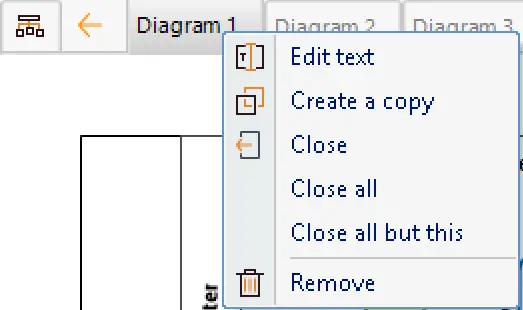
•Right click a diagram tab to either: Edit the tab name, create a diagram copy, Close the selected tab, close all the tabs, close all the tabs excepting the selected one, or delete the diagram tab.
•Select the diagrams button to go to the Diagram's view, to create, visualize or select your model diagrams.

Last Updated 1/7/2022 8:55:33 AM